HTTP Sharing
0. Introduction
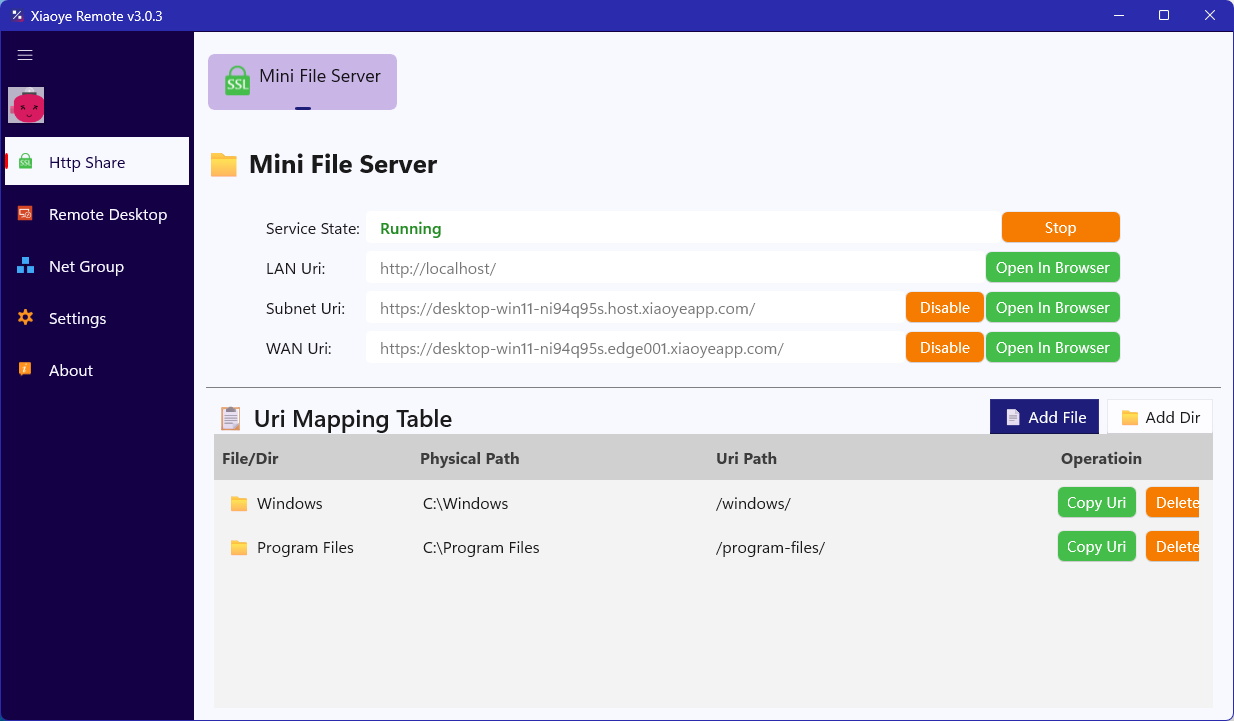
HTTP Sharing provides a one-click file sharing feature. Once you start the service, you can add files to the mapping list, and others on the same local network or virtual subnet can access your shared files via your HTTP link.
1. Launch Xiaoye Remote App
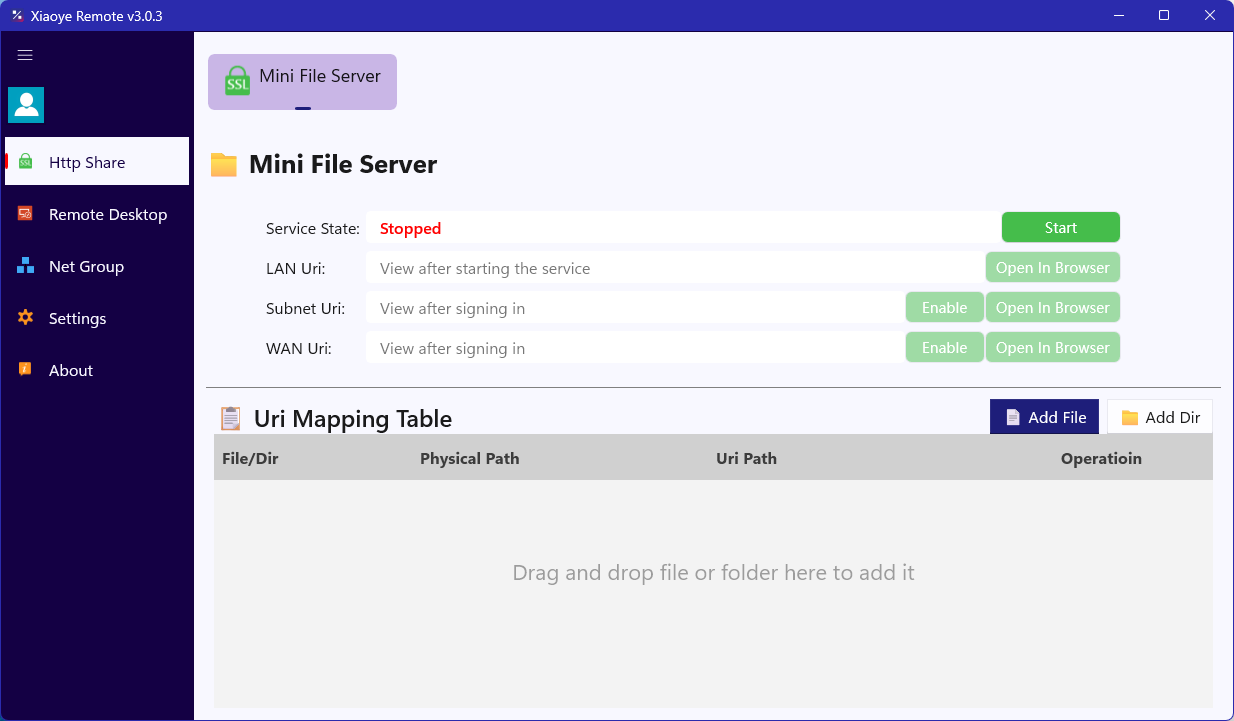
Start the Xiaoye Remote App and you will see the HTTP Sharing homepage as shown below. The service is stopped by default.
2. Start the Service
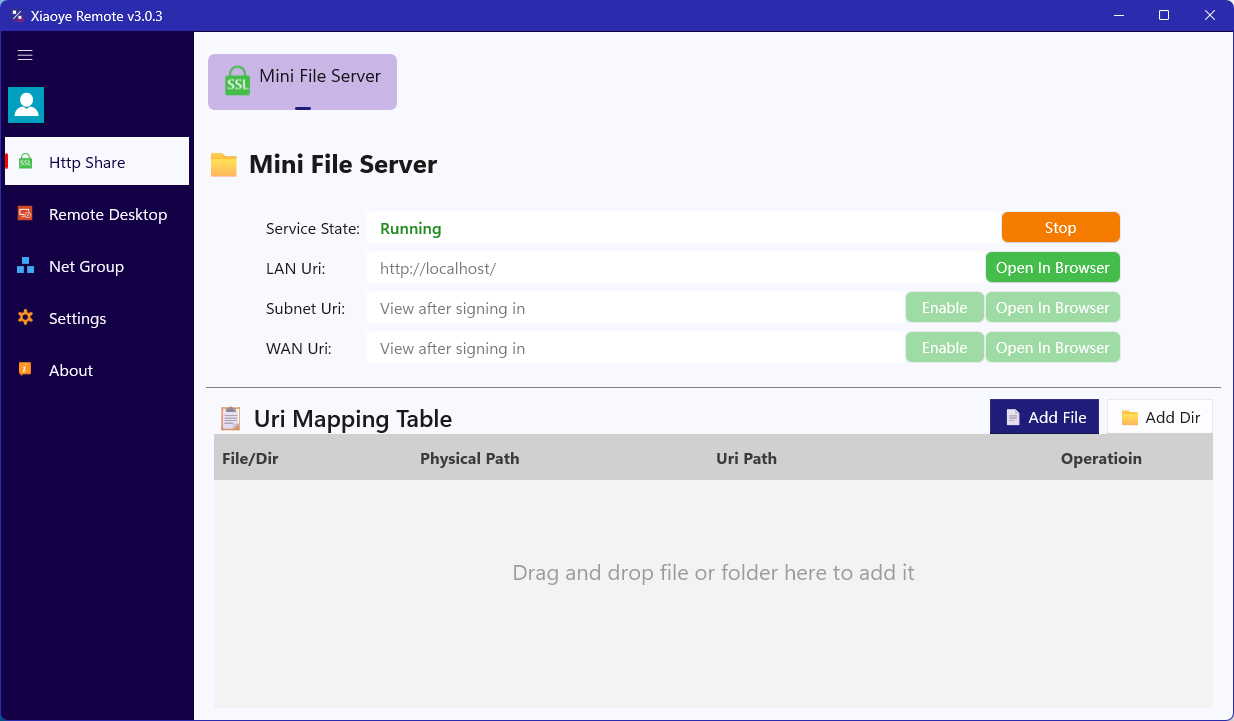
Click the Start button at the top. Once started, you will see an indicator showing that the service is running.
3. Add Files to Share
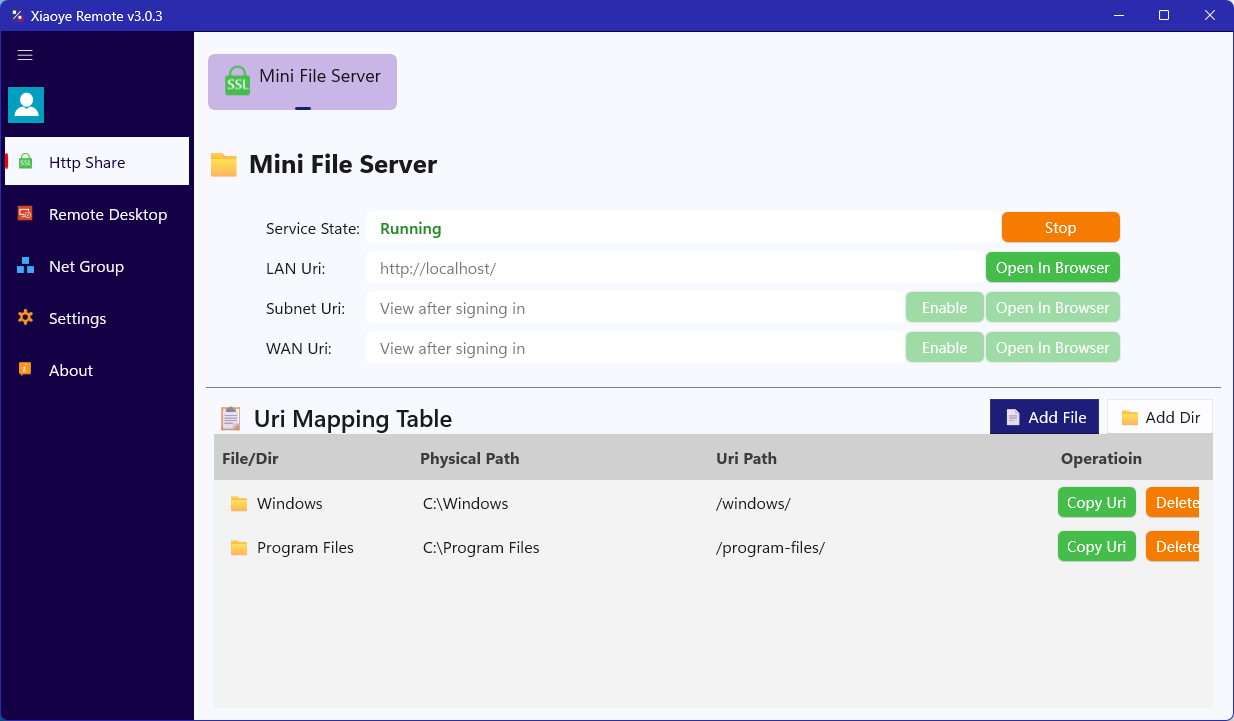
You can drag and drop files or folders directly into the URI mapping table area, or click Add File / Add Directory and select files through the file manager window.
4. Open in Browser
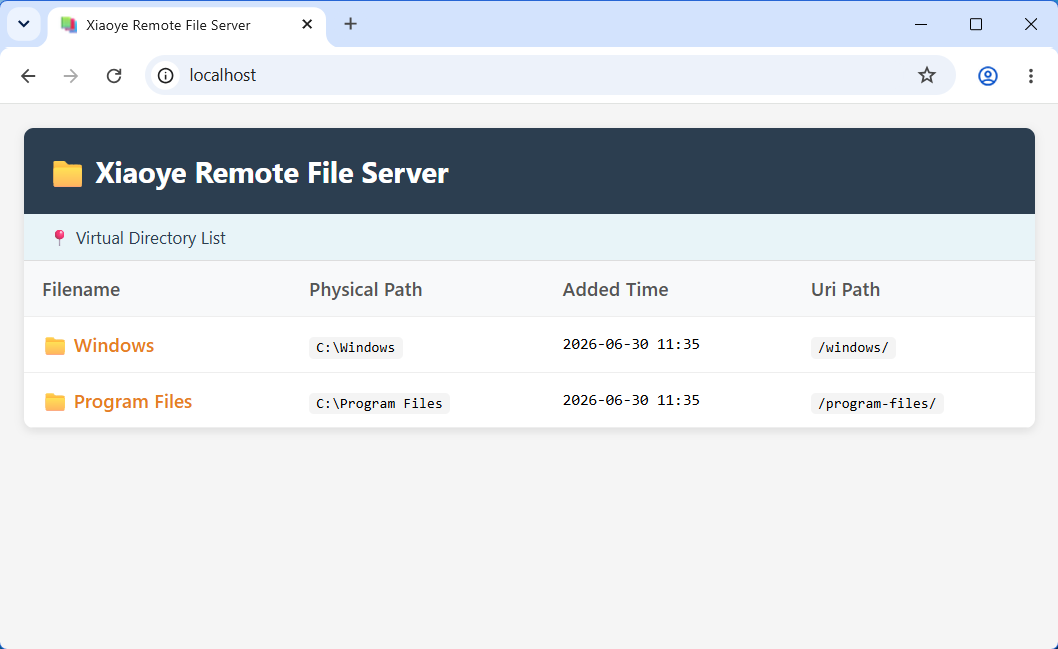
Click the Open in Browser button, and you will see a basic file sharing list. If another device is on the same local network as yours, enter http://<local-ip> to access it.
5. Share on Subnet or Public Network
If you want to access shared files from other networks, first click the avatar in the upper-left corner to log in with your Xiaoye Passport account. After logging in, return to the HTTP Sharing page and click the Subnet/External Network toggle button. Once enabled, you will see two links:
Subnet URI: Accessible between two devices logged in with the same Xiaoye Passport account, or between devices in the same network group.
WAN URI: You can access this link from any other device or mobile phone. If it is not accessible, wait a few seconds and refresh.
Note: Please disable the relevant features promptly when sharing is no longer needed.