Net Group
1. Create a Net Group
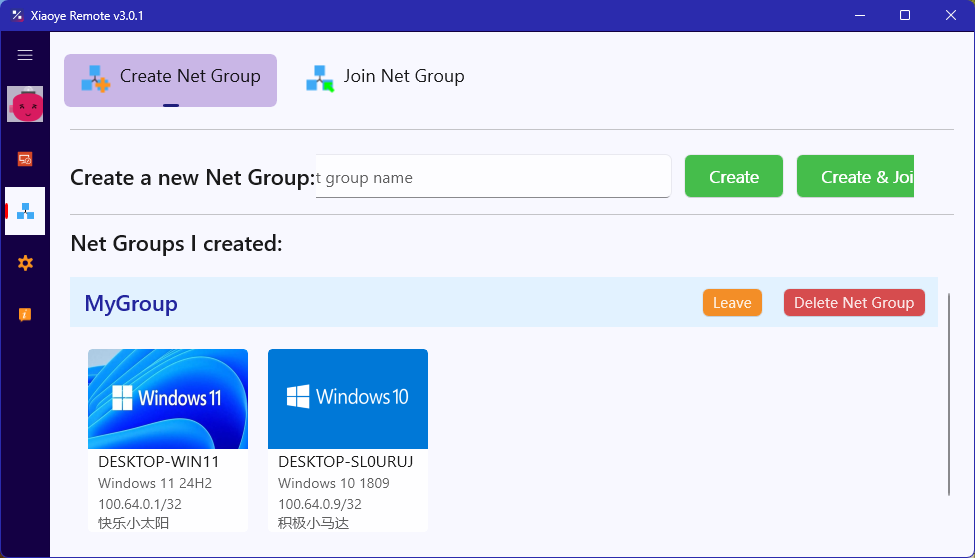
Log in to Xiaoye Remote with Account A, switch to the "Network Group - Create Network Group" tab, enter a network group name (letters, numbers, underscores) such as "MyGroup", then click Create. After successful creation, the network group you created will be displayed below.
If you select "Create and Join", the current device node will appear in the network group.
You can also click the "Join" button on the right side of the network group after creation.
2. Join a Net Group
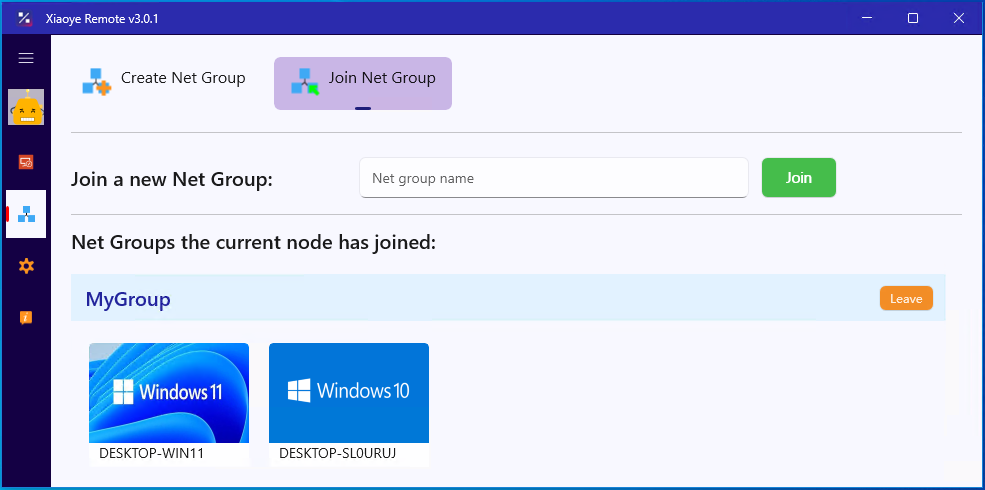
Log in to Xiaoye Remote with another Account B, switch to the "Network Group - Join Network Group" tab, enter the network group name created by User A (e.g., "MyGroup"), then click Join. After successfully joining, the network group you joined will be displayed below.
3. Test Network Connectivity
On both devices, you can ping the virtual IP addresses shown above to test connectivity.
Note: The network group is designed for connecting devices across different accounts. If you log in to Xiaoye Remote on two devices with the same account, they are interconnected by default and do not require additional network group settings.