Elegantly Adjust Your Remote Desktop Display: From Fixed Resolution to Auto-Adaptation
If you’ve ever used remote desktop software, you’ve likely encountered this scenario: you try to enlarge the window, and the image becomes blurry; or you want to fill the screen, but you have to set the resolution in advance, and once connected, it can’t be changed. This isn’t a flaw in any particular software—it’s the result of the three long-standing display modes in Windows Remote Desktop, each with its own design logic.
1. Full‑Screen Mode
Design Concept
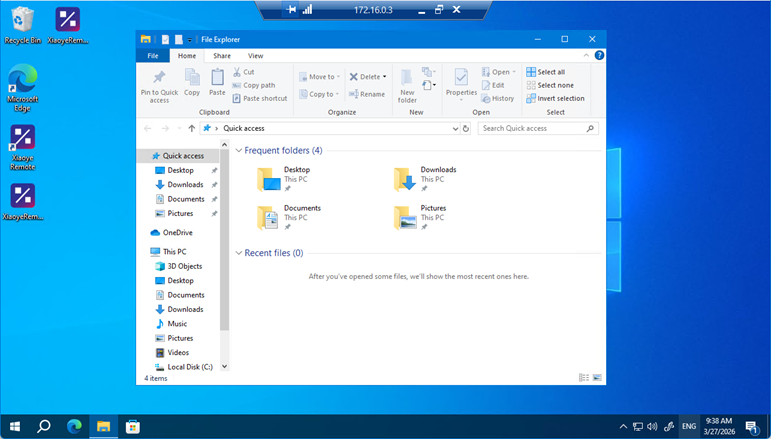
This is the most intuitive approach. Entering full‑screen mode makes the remote desktop instantly fill your entire display, hiding the title bar, borders, and taskbar, leaving only the remote computer’s desktop. It feels as if you’re sitting right in front of that machine, with your view completely taken over.
In full‑screen mode, the remote window typically occupies the current display, locking the mouse inside. To switch back to a local application—say, to check a message or reply on WeChat—you need to press a keyboard shortcut to exit full‑screen mode.
User Experience
-
Strongest immersion, ideal for extended focused work
-
Maximised screen utilisation, unaffected by local window layouts
-
On multi‑monitor setups, full‑screen usually takes over the current display, with the mouse confined to it
Best For
Scenarios where you need to “live” inside the remote computer without interruptions from local tasks.
2. Fixed Resolution Mode
Design Concept
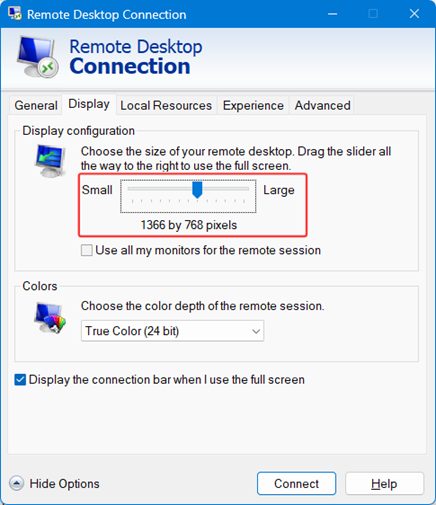
This is the more traditional approach. Before connecting, you specify the resolution you want—for example, 800×600. The remote host then outputs exactly that resolution, and the client displays it pixel‑for‑pixel.
User Experience
-
Crystal‑clear visuals, with pixel‑perfect rendering
-
Stable layout, independent of the local window size
-
After connecting, the window itself has a maximum size limit—you cannot drag it beyond the pre‑set resolution
Best For
Situations where image quality matters and the window size remains relatively fixed, such as remote debugging or reviewing design drafts.
3. Scaling Mode
Design Concept
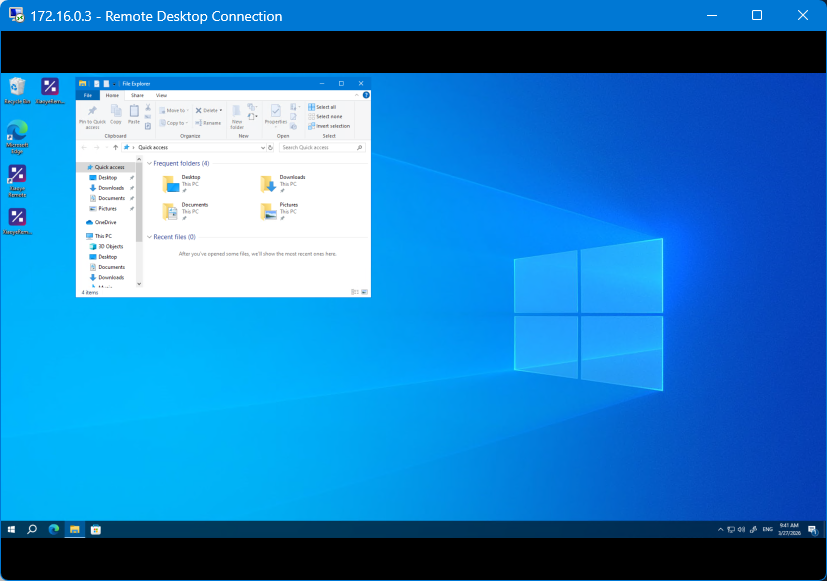
No matter how large or small you drag the window, the remote desktop content scales proportionally to fill it. This is achieved through interpolation algorithms: when the window grows, the content is “stretched”; when it shrinks, the content is “compressed”. As a result, the display always fits the window, but text edges become less sharp, and icon details degrade slightly. On a 4K screen, shrinking a remote window can make text difficult to read.
User Experience
-
Window can be resized arbitrarily; content always fits proportionally
-
Extremely adaptable—works with any window shape or size
-
Scaling affects sharpness; text and icons are less crisp than in fixed‑resolution mode
Best For
Everyday office work and tasks where the window size changes frequently and absolute sharpness isn’t critical.
4. Trade‑offs Among the Three Modes
From a design perspective, these three modes cater to different usage habits:
| Mode | Core Value | Characteristics |
|---|---|---|
| Full‑Screen | Immersion | Occupies the entire display; strong focus |
| Fixed Resolution | Clarity | Pixel‑perfect; stable visuals |
| Scaling | Flexibility | Adapts to window size; natural interaction |
Each mode has its strengths, but they share a common limitation: the resolution is fixed once the connection is established. In full‑screen mode, the resolution is determined by the physical display; in fixed‑resolution mode, it’s set beforehand; in scaling mode, while the window can change, the image quality varies with the scaling factor.
5. Xiaoye Remote Control: A New Balance Between Clarity and Flexibility
Is there a way to freely adjust the window like scaling mode while maintaining the sharpness of fixed‑resolution mode?
Xiaoye Remote takes a different approach: it dynamically adjusts the resolution rather than scaling the image.
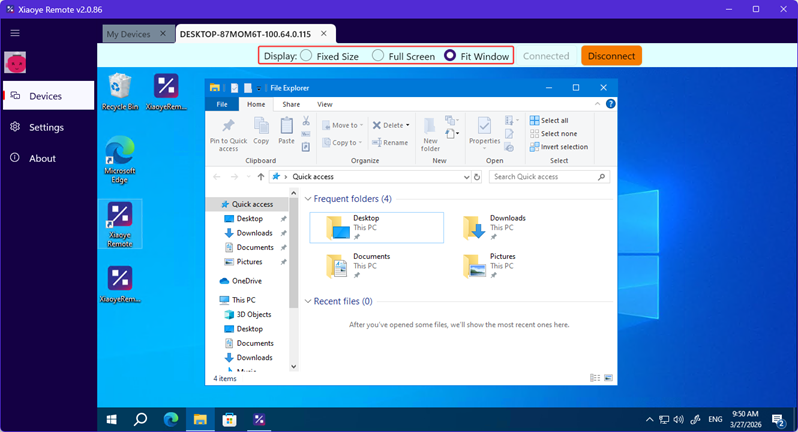
When you enlarge the window, it tells the remote host: “The window is now bigger—please send me a new resolution that matches.” When you shrink the window, it adjusts accordingly. Every time the window size changes, the resolution updates seamlessly. The result is a 1:1 pixel mapping, with no interpolation, no blur, and no empty borders.
There’s no need to reconnect or manually tweak settings—the display always adapts to the window, eliminating the blur of scaling mode, the rigidity of fixed‑resolution mode, and the lock‑in of full‑screen mode.
It feels like using a local application: you can freely resize the window, and the content remains perfectly clear.
Note: Xiaoye Remote is designed to connect two computers over the internet, so you need to sign in on both machines to use it.