Local Account vs. Microsoft Account: A Complete Guide to Windows Remote Desktop Login
Introduction
Windows Remote Desktop (Remote Desktop Protocol, RDP) is a powerful feature provided by Microsoft, allowing users to remotely control another Windows computer from one device. When connecting to Remote Desktop, users can log in using either a local account or a Microsoft account, each with its own characteristics and applicable scenarios. This article will detail the differences between these two account types, configuration methods, and login steps to help you choose the most suitable solution.
I. Understanding the Two Account Types
1.1 What is a Local Account?
A local account is an account created on a specific computer and exists only on that machine.
-
Nature: A Windows user account created only on the local computer
-
Access Scope: Can only access resources and services on the local computer
-
Password Storage: Password is stored on the local computer
-
Applicable Scenarios: Standalone use, small office environments without cloud services
1.2 What is a Microsoft Account?
A Microsoft account is a unified login credential provided by Microsoft, usable for accessing all Microsoft services.
-
Nature: A user account created within Microsoft Azure cloud services
-
Access Scope: Can access all Microsoft services, including OneDrive, Office 365, etc.
-
Password Storage: Password is stored on Microsoft cloud servers
-
Applicable Scenarios: Users needing cloud synchronization and multi-device collaboration
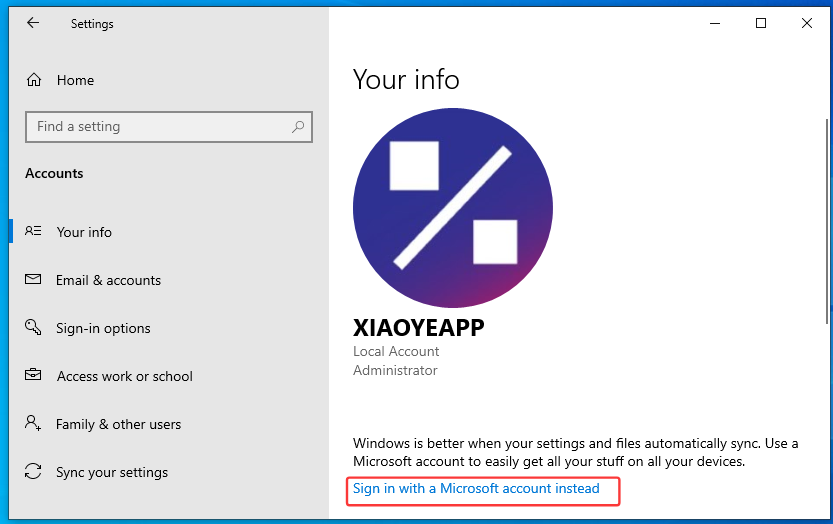
You can choose to use a Microsoft account directly during system installation, or you can log in with a local account first and then bind it to a Microsoft account later.
Note: After binding to a Microsoft account, the local account still exists in the system, but its login method becomes invalid, and it will no longer support remote desktop login using the local account credentials.
II. Using a Microsoft Account to Log in to Remote Desktop
2.1 Preparation Before Login
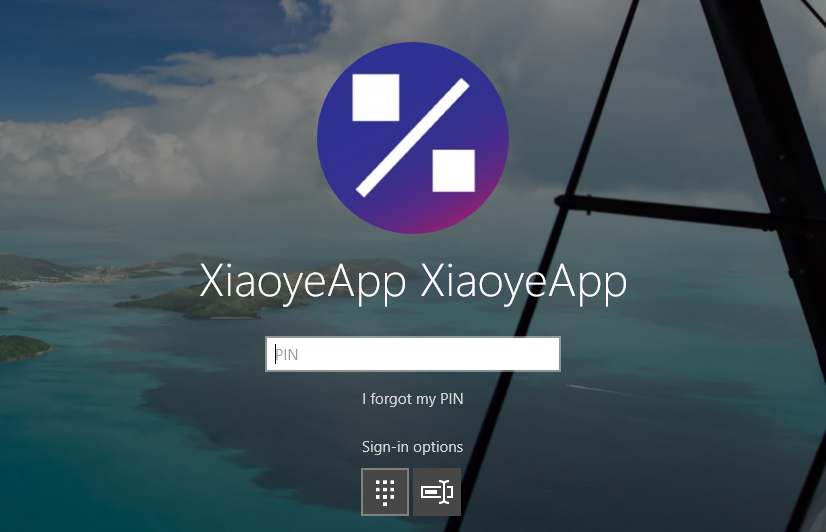
During the Windows installation process, you might use authentication methods like an authenticator app instead of a password. In such cases, the system does not directly store your Microsoft account password, and you need to trigger password verification once.
As shown in the image below, if you have been using a PIN to log in after adding a Microsoft account, the password cache on the controlled computer will not be triggered, and you will be unable to connect via Remote Desktop.
Select the password login option from the login choices below and log in once using your Microsoft account password. This will allow your Microsoft account password to be verified for subsequent Remote Desktop connections.
2.2 Connection Steps
On the controlling computer:
-
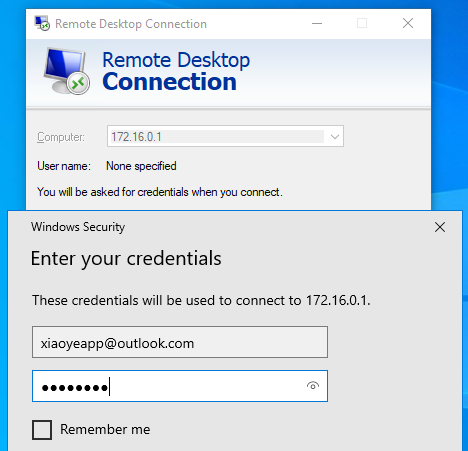
Open Remote Desktop Connection (
mstsc) -
Enter the connection information
-
Computer: The computer name or IP address of the controlled computer
-
User name: Enter the complete Microsoft account email address
-
Password: Enter your Microsoft account password
-
-
Connect successfully
III. Practical Comparison of the Two Login Methods
3.1 Connection Experience Comparison
| Scenario | Local Account | Microsoft Account |
|---|---|---|
| First Connection | Directly enter username and password | Need to ensure password verification has been triggered |
| Incorrect Password | Affects only the single device | Affects all devices using the cloud password |
| Password Recovery | Requires administrator reset | Online self-service recovery |
| Two-Factor Authentication | Not supported | Supported |
| Multi-Device Sync | Manual configuration | Automatic settings synchronization |
3.2 Practical Case Comparison
Case 1: Zhang's Office Computer (Local Account)
Zhang uses a local account to log in to Remote Desktop at his company. He needs to manually maintain the same username and password on every computer that requires remote connection. If the password changes, all computers need to be updated. The advantage is that even if the company network is disconnected, he can still log in to his computer using the local account.
Case 2: Li's Home Network (Microsoft Account)
Li uses a Microsoft account for Remote Desktop at home. He only needs to remember one password, and all his devices synchronize automatically. However, if network issues occur or Microsoft services are interrupted, the login experience might be affected. Additionally, if he changes his password on a new device, he needs to manually trigger password verification once on the controlled computer before continuing to use Remote Desktop.
IV. Common Problems and Solutions
Problem 1: Unable to Connect to Remote Desktop
Checklist in order:
-
Confirm Windows version support (Pro edition and above)
-
Check if Remote Desktop is enabled
-
Confirm the firewall allows Remote Desktop (usually configured automatically when enabled)
-
Verify the account has remote login permissions
-
Confirm the account has a password set
-
Test network connectivity:
ping target IP
Problem 2: Microsoft Account Login Fails
Possible causes and solutions:
-
Local password verification not triggered: Log in to Windows once using your Microsoft account password.
-
Password changed: Re-execute the password verification command to update the password.
-
Account locked: Unlock the account by logging into the Microsoft website.
Problem 3: Credentials Cannot Be Verified
-
Ensure the username format is correct (local account uses username, Microsoft account uses full email).
-
Check if the password is correct.
-
Try adding a domain prefix before the username:
Computer Name\UsernameorMicrosoftAccount\Email Name.
V. Xiaoye Remote Desktop's Support for Microsoft Accounts
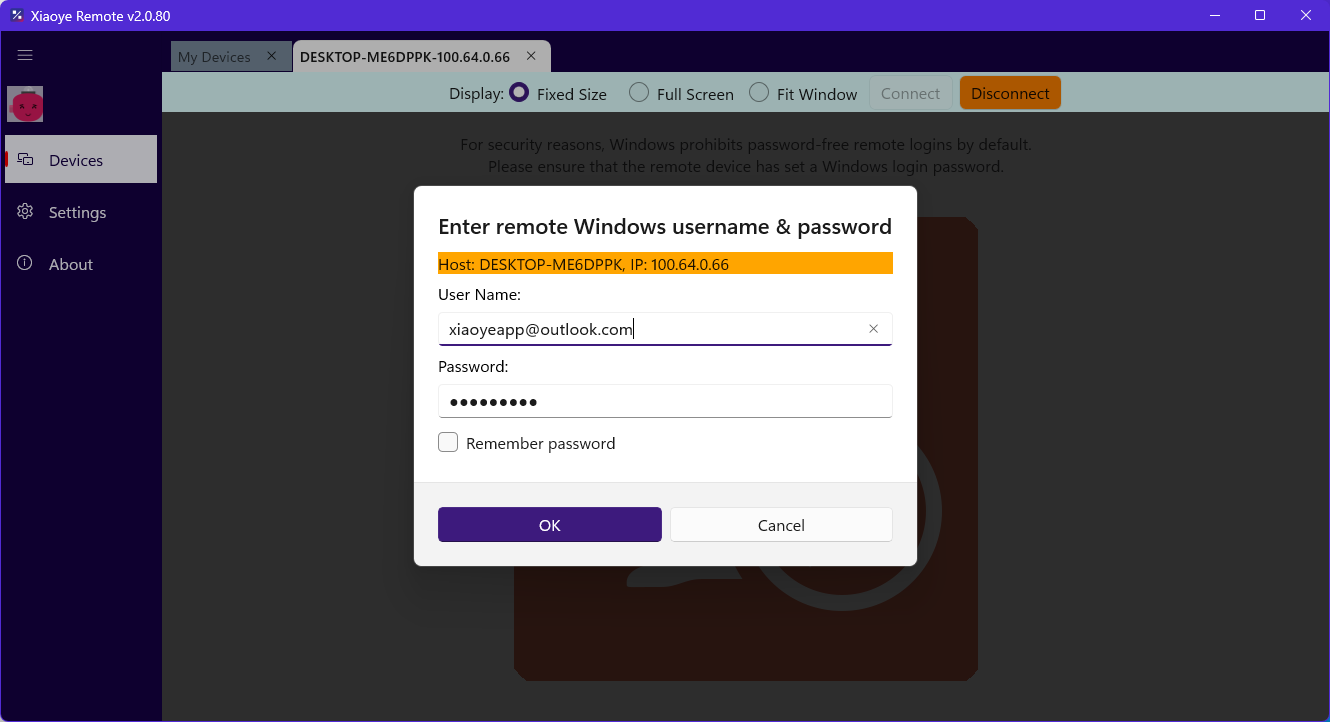
Xiaoye Remote Desktop also supports accessing Remote Desktop using a Microsoft account, provided that your Windows Remote Desktop meets the prerequisites mentioned in Chapter II.
Conclusion
Choosing between a local account and a Microsoft account for Remote Desktop login depends on your specific needs:
-
If you are in a standalone environment or internal network, focusing on simplicity and directness, a local account is perfectly sufficient.
-
If you need multi-device synchronization, cloud service integration, and want to simplify password management, a Microsoft account is more suitable.
Regardless of the choice, proper configuration and security awareness are key to ensuring a smooth and secure remote working experience. We hope this guide helps you easily build a stable and secure remote working environment!