Redirect Your Drives in Windows Remote Desktop
In our daily work, we often need to copy files from our local computer to a remote server or office computer. The traditional approach involves network sharing, FTP, or cloud storage transfers, but these methods are either complex to configure or limited by speed.
Today, I'd like to share a practical feature of Windows Remote Desktop that is easy to overlook: Drive Redirection. Once configured, your local hard drive partitions will appear directly in "This PC" on the remote desktop, allowing you to copy files as simply as you would on your local machine.
Steps
Step 1: Open Remote Desktop Connection
Press Win + R, type mstsc, and press Enter to open the Remote Desktop Connection client.
Step 2: Access Local Resources Settings
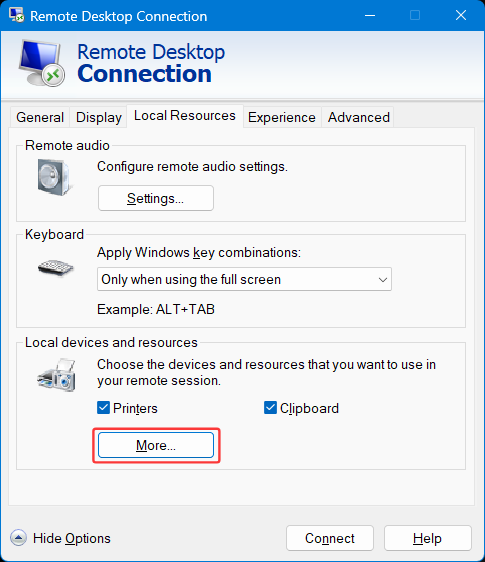
In the Remote Desktop Connection window, click on "Show Options" in the bottom-left corner, then switch to the "Local Resources" tab.
Step 3: Configure Drive Mapping
In the "Local Resources" tab, click the "More..." button.
Step 4: Select the Drives to Map
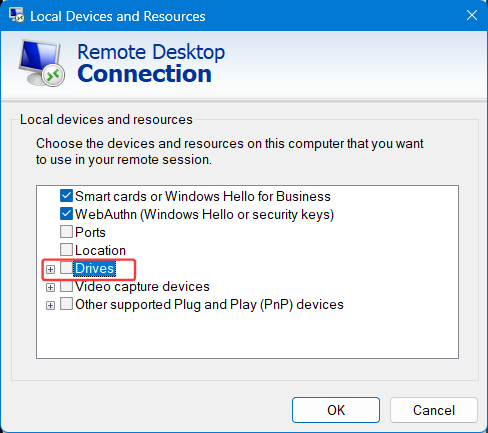
In the pop-up window, expand the "Drives" list and check the local disk partitions you wish to map to the remote desktop.
-
Checking the "Drives" checkbox selects all partitions
-
Alternatively, you can select individual drives such as C: or D: as needed
-
Click "OK" to confirm
Step 5: Connect to the Remote Desktop
Enter the remote computer's IP address and credentials as usual to connect to the remote desktop.
Final Result
Once connected, open "This PC" in the remote desktop window. Under the "Redirected Drives and Folders" section, you will see the local drive letters you checked earlier.
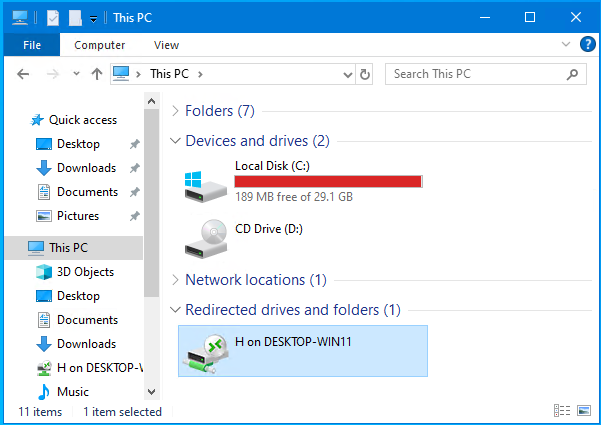
Now, you can drag, copy, and paste files directly between the remote computer and your local drives, just as you would on your local machine—no intermediate tools required.
Important Notes
-
Network and Policy Restrictions: In some corporate environments, IT administrators may disable drive redirection via Group Policy. In such cases, this option may be unavailable or ineffective.
-
Security Recommendations: Only use this feature on remote computers you trust. Enabling this option on public or untrusted remote computers may lead to local data leakage.
-
Performance Considerations: When reading or writing files to a mapped drive over a remote desktop session, data is transmitted over the network. The speed of copying large files is limited by your available network bandwidth.
Conclusion
This little tip saves you the intermediate steps of setting up file sharing or uploading to cloud storage. It significantly improves efficiency, especially when you need to temporarily transfer a few files to a server.
If you frequently use Remote Desktop for work, give this feature a try.