Windows Desktop Development: Introduction to WinUI 3
Introduction
As a Windows desktop developer, have you ever been confused about how many UI frameworks Microsoft actually has? Win32, MFC, WinForms, WPF, UWP, WinUI… these terms can be overwhelming. Today, we'll sort through the evolution of Windows UI frameworks and focus on Microsoft's current flagship—WinUI 3—to help you take your first step into modern Windows desktop development.
1. Three Generations of Windows UI Frameworks
Looking back at the history of Windows desktop development, we can roughly divide these frameworks into three stages:
First Generation: The Native Era — Win32 / MFC
Win32 API is the lowest-level interface for Windows UI programming, allowing direct interaction with the operating system. When developing desktop applications with Win32, you need to manually handle window messages (WM_PAINT, WM_CLOSE, etc.) and manage handles and resources. The advantages are extremely high performance and strong control, but the downside is low development efficiency—even creating a single button requires dozens of lines of code.
MFC (Microsoft Foundation Classes) is a C++ wrapper around Win32 that abstracts windows and controls into C++ classes, simplifying the development process. From the 1990s to the early 2000s, MFC was the mainstream choice for Windows desktop development. However, due to its dependence on C++ complexity and legacy issues, it has gradually faded from the scene.
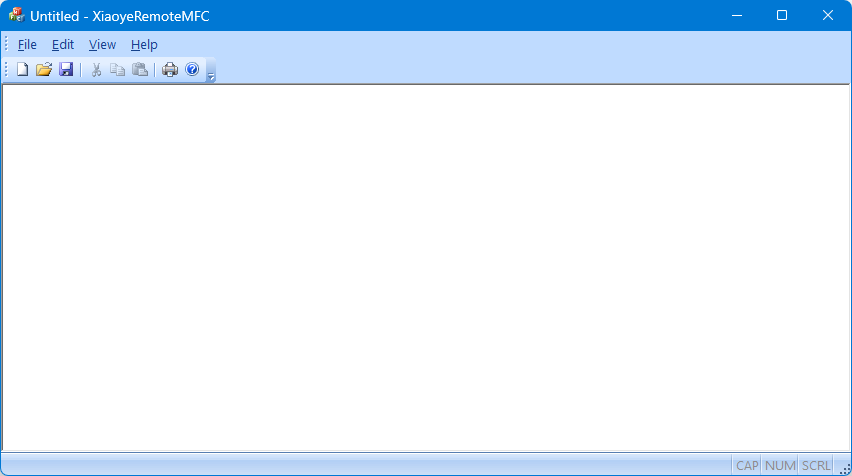
Characteristics: Low-level, high performance, low development efficiency, rarely used in modern development
Second Generation: The Managed Era — WinForms / WPF
With the introduction of the .NET Framework, Microsoft launched two major managed UI frameworks:
WinForms was released in 2002 with .NET Framework 1.0. It adopts a "what you see is what you get" design philosophy, making drag-and-drop development extremely intuitive and code simple to understand. For traditional business system development (such as inventory management, ERP), WinForms still has a wide user base today.
WPF (Windows Presentation Foundation) was released in 2006, bringing revolutionary changes: XAML declarative UI, vector graphics, data binding, and the MVVM pattern. WPF separates the interface from logic, achieving true "UI and code decoupling." Numerous enterprise applications still run on WPF today.
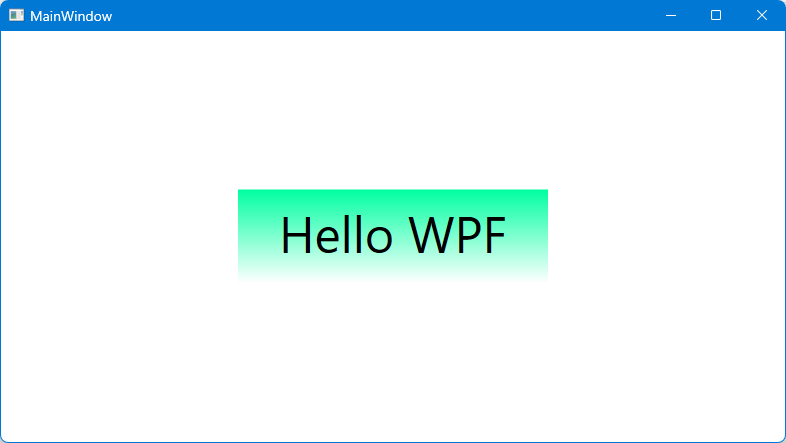
Characteristics: Managed code, high development efficiency, mature ecosystem, WPF suitable for complex interface development
Third Generation: The Modern Era — WinRT / UWP / WinUI
WinRT (Windows Runtime) was introduced with Windows 8, designed for touchscreens and the Metro style, introducing a new application model and API design.
UWP (Universal Windows Platform) is an evolution of WinRT, with the slogan "develop once, run on multiple platforms" (PC, Xbox, HoloLens, etc.). UWP supports modern UI features (such as acrylic effects, fluid animations), but due to mandatory distribution through the Microsoft Store and API restrictions, developer adoption has been limited.
WinUI 3 is Microsoft's latest native UI framework, which can be seen as the "unbundled" version of UWP—it separates the modern UI control library from UWP, no longer requires Store distribution, and allows developers to use full Windows APIs. WinUI 3 is currently Microsoft's only heavily invested desktop UI framework.
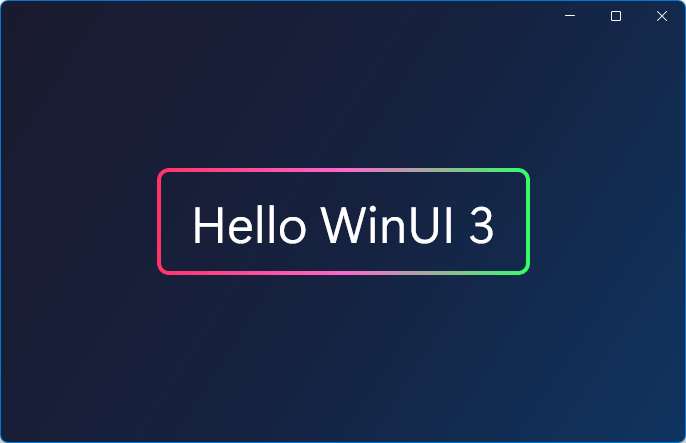
Characteristics: Modern UI, fully native, no distribution restrictions, Microsoft's current strategic direction
2. Why Choose WinUI 3?
1. Official Strategic Direction
From Microsoft's official statements and version iterations, WinUI 3 has become the primary framework for Windows desktop development. While WinForms and WPF will continue to be maintained, new features are rarely added; WinUI 3, however, continues to evolve and tightly integrates with Windows 11's new features.
2. Modern UI Experience
WinUI 3 comes with Fluent Design built-in, giving your applications:
-
Mica and Acrylic effects: Frosted glass-like textures
-
Rounded corners and animations: Aligned with Windows 11's design language
-
Dark/Light theme auto-adaptation: No additional code required
3. Full API Access
Unlike UWP, WinUI 3 applications can call all Windows APIs (including registry, system services, any file system location, etc.) without sandbox restrictions. This means you can smoothly migrate powerful features from existing Win32/WPF applications to a modern UI.
4. Multiple Distribution Methods
WinUI 3 applications can:
-
Run directly as .exe files
-
Be packaged as MSIX for distribution through the Microsoft Store
-
Be distributed through other installer tools
3. Creating Your First WinUI 3 Application
Now that we've covered the theory, let's get hands-on and create a simple WinUI 3 application.
Step 1: Create the Project
-
Open Visual Studio 2022 and click "Create a new project"
-
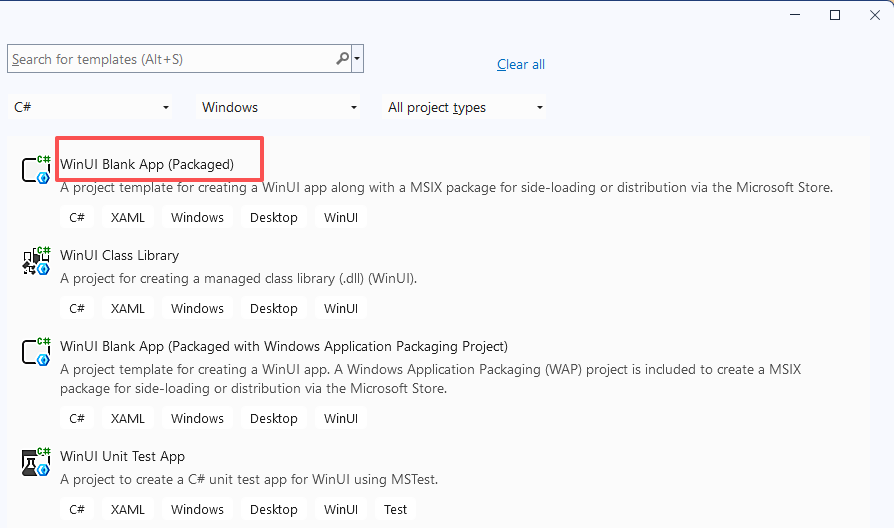
Enter "WinUI" in the template search box and select "Blank App, Packaged (WinUI 3)"
-
Click "Create," enter a project name such as "Xiaoye Remote," and you'll have a standard WinUI 3 project created
Step 2: Understand the Project Structure
After creation, you'll see the following structure:
├── App.xaml                 # Application entry point, defines startup window and global resources
├── App.xaml.cs              # Code-behind for App.xaml
├── MainWindow.xaml          # Main window interface
├── MainWindow.xaml.cs       # Code-behind for the main window
├── Package.appxmanifest     # Packaging configuration file (icons, permissions, etc.)
└── (Other project files)
Step 3: Design a Simple Interface
Open MainWindow.xaml and replace the content between <Grid></Grid> with the following code:
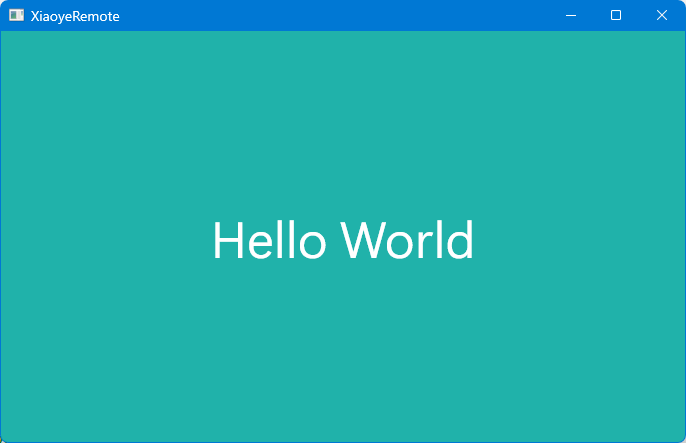
<Grid Background="#20b2aa">
    <TextBlock
        Foreground="White"
        HorizontalAlignment="Center"
        VerticalAlignment="Center"
        FontSize="50">Hello World</TextBlock>
</Grid>
Step 4: Run the Application
Press F5 to start debugging, and you'll see a basic window:
Conclusion
As Microsoft's new generation flagship framework for desktop development, WinUI 3 inherits the excellent design concepts of WPF, integrates the modern UI experience of UWP, while removing distribution restrictions. For Windows developers, now is the perfect time to learn WinUI 3—Microsoft is fully committed to it, and the ecosystem is continuously improving.
I hope this article helps you understand the evolution of Windows UI frameworks and successfully run your first WinUI 3 application!