Xiaoye Remote Control 3.0.1 Released: Easily Build Network Groups Across Accounts
We are excited to announce that Xiaoye Remote Control 3.0.1 is officially released! This update brings a major new feature — Network Group — making cross-account device connectivity easier than ever before.
🚀 Core Highlight: Cross-Account Network Groups
In the past, when using remote control software, devices under the same account could connect easily. However, once different accounts were involved, complex configurations, relay servers, or even third-party tools were often required.
Now, Xiaoye Remote Control 3.0.1 completely solves this problem.
A Network Group is a virtual device cluster that allows you to add devices from multiple different accounts into the same logical group, enabling direct cross-account connectivity with no additional configuration required.
📖 How to Use Network Groups
Step 1: Create a Network Group
Log in to Xiaoye Remote Control with Account A, go to Network Group → Create Network Group, enter a name (e.g., MyGroup), and click Create.
💡 Tip: The name only supports letters, numbers, and underscores.
After successful creation, you can select "Create and Join" to automatically add your current device to the network group, or you can manually click the "Join" button on the right side of the network group later.
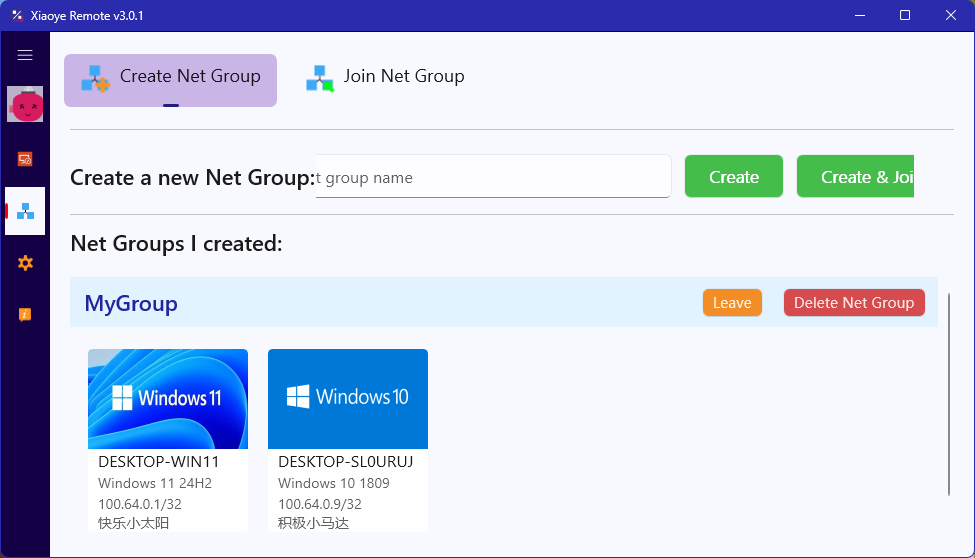
Step 2: Invite Other Accounts to Join
Log in to Xiaoye Remote Control with Account B, go to Network Group → Join Network Group, enter the network group name created by Account A (e.g., MyGroup), and click Join.
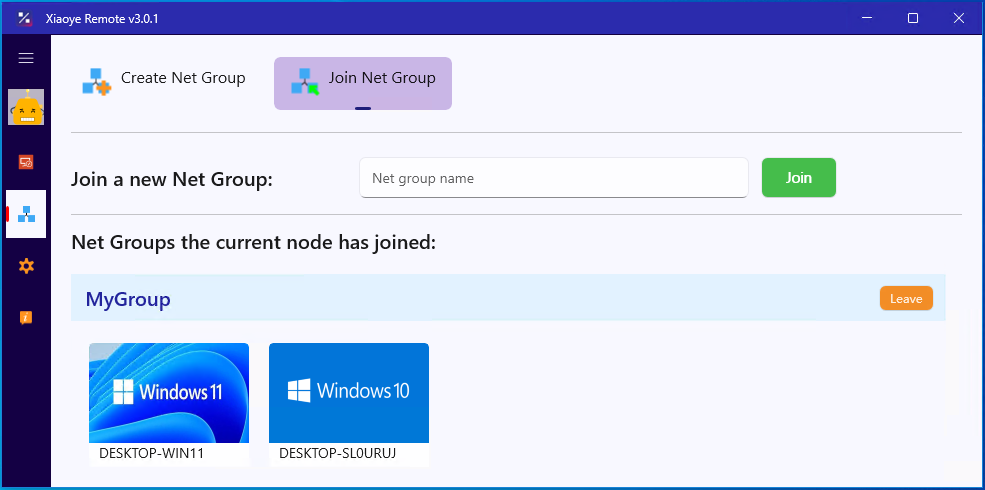
Step 3: Test Network Connectivity
After successfully joining, both devices will be assigned a virtual IP address. You can use the ping command to test connectivity:
If the ping succeeds, you can perform remote desktop connections, file transfers, and other operations just like on a local area network.
⚡ Same Account vs. Cross-Account
| Scenario | Network Group Required | Description |
|---|---|---|
| Same account, multiple devices | ❌ No | Interconnected by default, ready to use out of the box |
| Different accounts, multiple devices | ✅ Yes | Connect via Network Group |
📌 Note: If you log in to Xiaoye Remote Control on two devices with the same account, they are interconnected by default and do not require creating a network group.
🎯 Use Cases
-
Team Collaboration – Multiple team members' devices join the same network group for more efficient remote assistance and file sharing
-
Multi-Account Households – Family members use their own accounts while still needing to control each other's devices
-
IT Operations – Manage multiple client devices, each with its own account, unified under one network group
-
Cross-Organization Cooperation – Temporary networking between partners, easily exit when the task ends
🔧 Other Updates
-
Optimized remote desktop connection stability
-
Improved UI interaction experience
-
Fixed several known issues
📥 Get Started Now
Visit the Xiaoye Remote Control official website to download the latest version, or upgrade to 3.0.1 through the in-app update.
Start building your exclusive network group today →