Xiaoye Remote Control 3.0.1 in Action: How to Set Up a Network Group Across Accounts?
Background
When using remote desktop software or accessing remote device resources, we often encounter this scenario:
Two people have different devices logged into different accounts and want to access each other's network resources. What to do?
For professionals, solutions like VPN or intranet penetration are possible, but for ordinary users, the setup cost is too high, and troubleshooting and maintenance can be challenging.
The Network Group feature in Xiaoye Remote Control 3.0.1 allows two people to easily form a network with their remote devices.
What is a Network Group?
Simply put, a Network Group can be understood as a virtual local area network (VLAN).
Pull devices from different accounts into the same "room" (Network Group), and they can access each other just like on the same local network, with direct virtual IP connections — no public IP address, no port forwarding required.
Hands-On: Cross-Account Networking with Two Devices
Environment Setup
| Role | Account | Device |
|---|---|---|
| Creator | Account A | Windows Desktop |
| Joiner | Account B | Windows Laptop |
Step 1: Create a Network Group
-
Open Xiaoye Remote Control and log in to Account A
-
Left menu: Network Group → Create Network Group
-
Enter a name:
MyGroup(only letters, numbers, and underscores are supported) -
Click Create
After successful creation, the network group you created will appear in the list below.
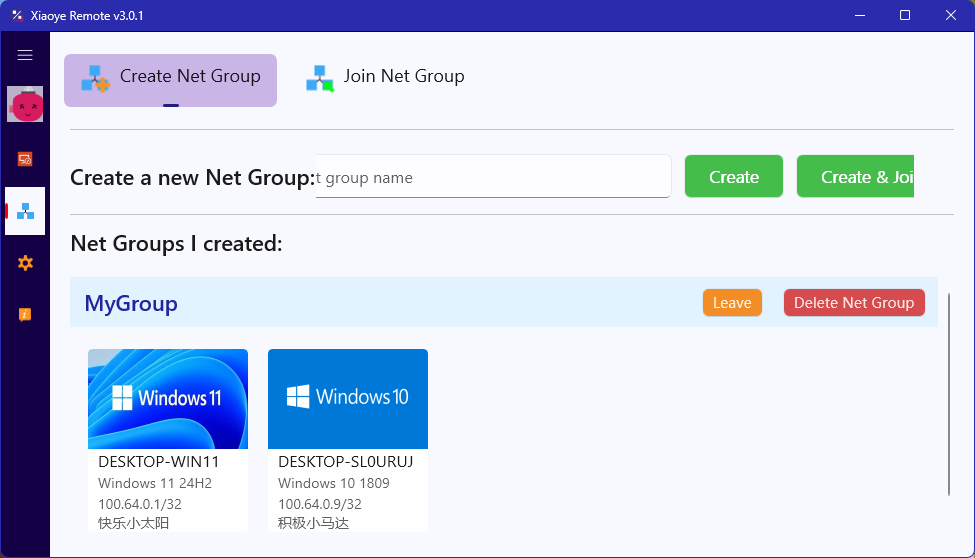
💡 Tip: Click "Create and Join" to automatically add your current device to the group, saving an extra step.
Step 2: Another Account Joins the Network Group
-
Log in to Account B on the other device
-
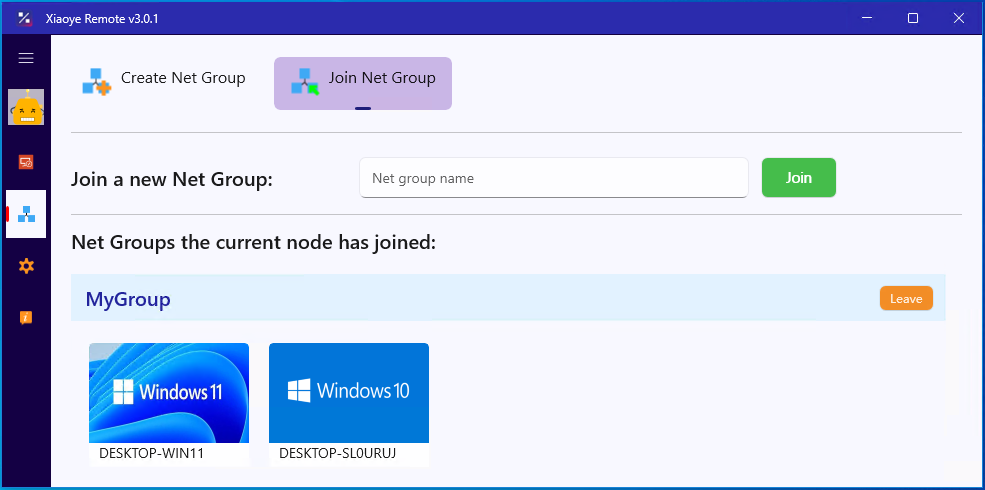
Go to Network Group → Join Network Group
-
Enter the network group name created earlier:
MyGroup -
Click Join
After successfully joining, Account B's device will also appear in the network group.
Step 3: Verify Connectivity
In the Network Group interface, each device will display a virtual IP address. Open the command line and ping the other device's virtual IP:
ping 100.x.x.x
If the ping succeeds, the network is established and the two devices can access each other.
Frequently Asked Questions
Q1: Do multiple devices under the same account need a Network Group?
No. Devices under the same account are interconnected by default and can connect directly without additional configuration.
Q2: Which ports are allowed?
Currently, after two devices are connected, ports 80, 443, and 3389 are allowed by default. More configurable port options will be added in future updates.
Q3: How do I leave a Network Group?
Click the "Leave" button on the right side of the network group in the list. After leaving, the devices will no longer be able to access each other.
Q4: Is the Network Group secure?
Network Group communication uses end-to-end encryption. Devices within the group can see each other, but outside access is blocked.
Summary
| Scenario | Solution |
|---|---|
| Same account, multiple devices | Direct connection, no Network Group needed |
| Different accounts, multiple devices | Create/join a Network Group for one-click networking |
The Network Group feature simplifies "cross-account networking" from complex to simple, making it very practical for team collaboration, multi-account households, IT operations, and more.