Windows Remote Desktop: Why You Should Enable NLA?
In daily Windows server or workstation management, Remote Desktop (RDP) is one of our most commonly used tools. However, many people may overlook a critical security setting — Network Level Authentication (NLA). Today, we'll dive into its principles, effect comparison, and why you should enable it.
1. What is NLA? Basic Principles and Version Support
Network Level Authentication (NLA) is a technology that performs user authentication before establishing a full remote desktop connection.
Basic Principle
In traditional mode without NLA, when you initiate an RDP connection, the target computer first allocates desktop session resources, loads the graphical interface, starts the login screen, and only then do you enter your username and password. This is like entering a room first and then being asked to show your ID.
With NLA enabled, at the very beginning of the connection, the client must send your credentials to the server for verification. Only after verification passes will the server start allocating session resources and loading the desktop environment. This is like having a guard at the door — if your ID isn't valid, you can't even enter.
Version Support
-
Server-side: Officially supported starting from Windows Server 2008 and Windows Vista.
-
Client-side: Supported starting from Windows XP SP3, but fully integrated starting from Windows 7 and later.
Mainstream systems like Windows 10/11 and Windows Server 2016/2019/2022/2025 all fully support NLA.
2. NLA On vs. NLA Off: Effect Comparison
To understand the differences intuitively, I'll compare three dimensions: connection efficiency, visual appearance, and security risks.
| Behavior | NLA On | NLA Off |
|---|---|---|
| First screen during connection | Directly displays the standard Windows login window (enter username/password). | First shows the remote desktop's wallpaper/welcome screen, or even the lock screen, then the login box appears. |
| Authentication timing | Verified immediately after transport layer is established. | Verified after some system resources have already been consumed (e.g., session memory allocated). |
| Server resource consumption | Low. Failed verification creates no session. | High. Each attempt (including failed password attacks) creates a full login session, wasting memory and CPU. |
| Resilience to brute force attacks | Strong. Attacks are rejected early. | Weak. The server is busy creating numerous sessions, easily leading to resource exhaustion and DoS. |
| Client compatibility requirements | Requires RDP client to support NLA (Win XP SP3 and above). | Any old RDP client (e.g., Win 2000, certain embedded devices) can connect. |
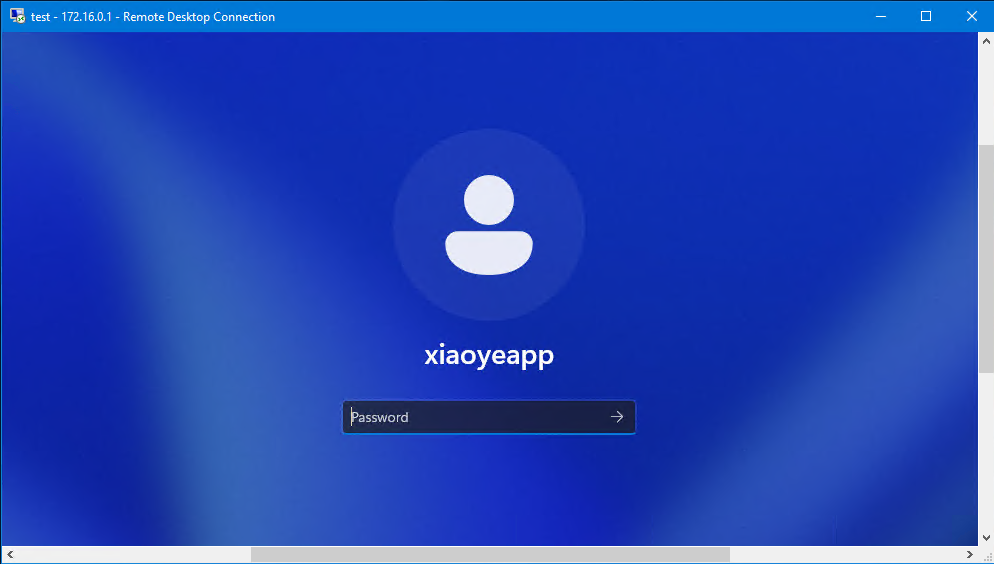
2.1 Connection Effect When NLA is Off: Lock screen appears first, then the password prompt.
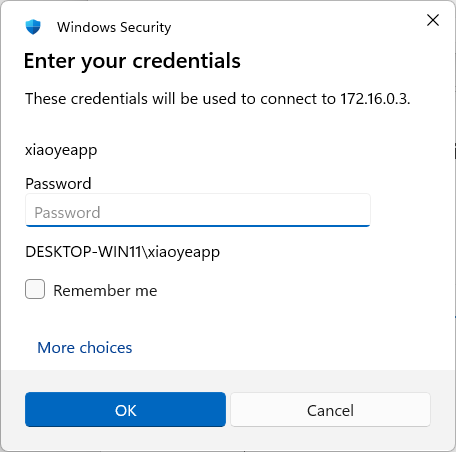
2.2 Connection Effect When NLA is On: Windows login prompt appears directly, no server resources are consumed before password entry.
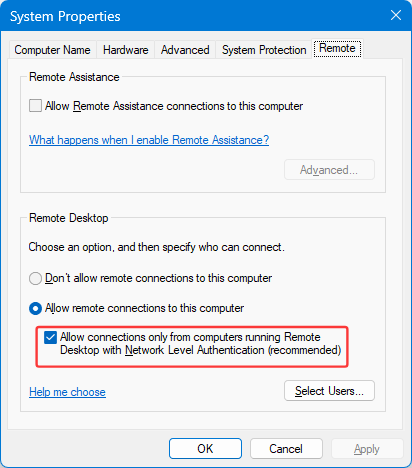
Forcing NLA On the Server Side
In System Properties → Remote → Remote Desktop section, checking "Allow connections only from computers running Remote Desktop with Network Level Authentication" forces NLA on.
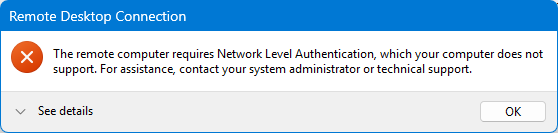
After forcing "NLA-only connections" on the server, clients that do not support NLA will receive a direct connection error, preventing session resource consumption.
3. Summary: For Security, Strongly Recommend Enabling NLA
From the comparison above, it's clear that disabling NLA, while allowing compatibility with very old systems (such as Windows 2000 or non-standard RDP clients), comes at the cost of serious resource waste and significant security risks.
Especially for remote desktop services exposed to the internet (strongly not recommended to expose port 3389 directly, but if you must), disabling NLA essentially leaves a "backdoor" for attackers to consume your server resources without even needing to authenticate.
Final Recommendations
✅ Default policy: On all operating systems that support NLA, make sure to check "Allow connections only from computers running Remote Desktop with Network Level Authentication."
✅ Compatibility handling: If old clients cannot connect, consider upgrading the client system, or disable NLA on a case-by-case basis only within isolated internal networks with firewall whitelisting, rather than globally.
✅ Further hardening: Even with NLA enabled, it is recommended to use strong passwords, account lockout policies, or non-standard ports (as a secondary measure).
In summary: Enable NLA — achieve pre-connection authentication and security protection with minimal configuration cost. This is a security best practice every Windows administrator should follow.