Xiaoye Remote 3.0.5: HTTP Sharing - A Simpler Way to Shre Files
We are pleased to announce the official release of Xiaoye Remote 3.0.5! This update brings a highly anticipated core feature – HTTP Sharing – making file sharing between different devices simpler and more flexible than ever before.
What is HTTP Sharing?
HTTP Sharing is a one-click file sharing feature provided by Xiaoye Remote. Once you start the service, you can add files to the mapping list, and others can easily access your shared files through the HTTP links you generate.
Wide range of applicable scenarios: Whether on a local network at home or in the office, through the virtual subnet built by Xiaoye Remote, or even in broader network environments, you can quickly achieve file sharing.
How to Use HTTP Sharing?
The entire process is designed to be intuitive and can be completed in just a few steps:
1. Run Xiaoye Remote App
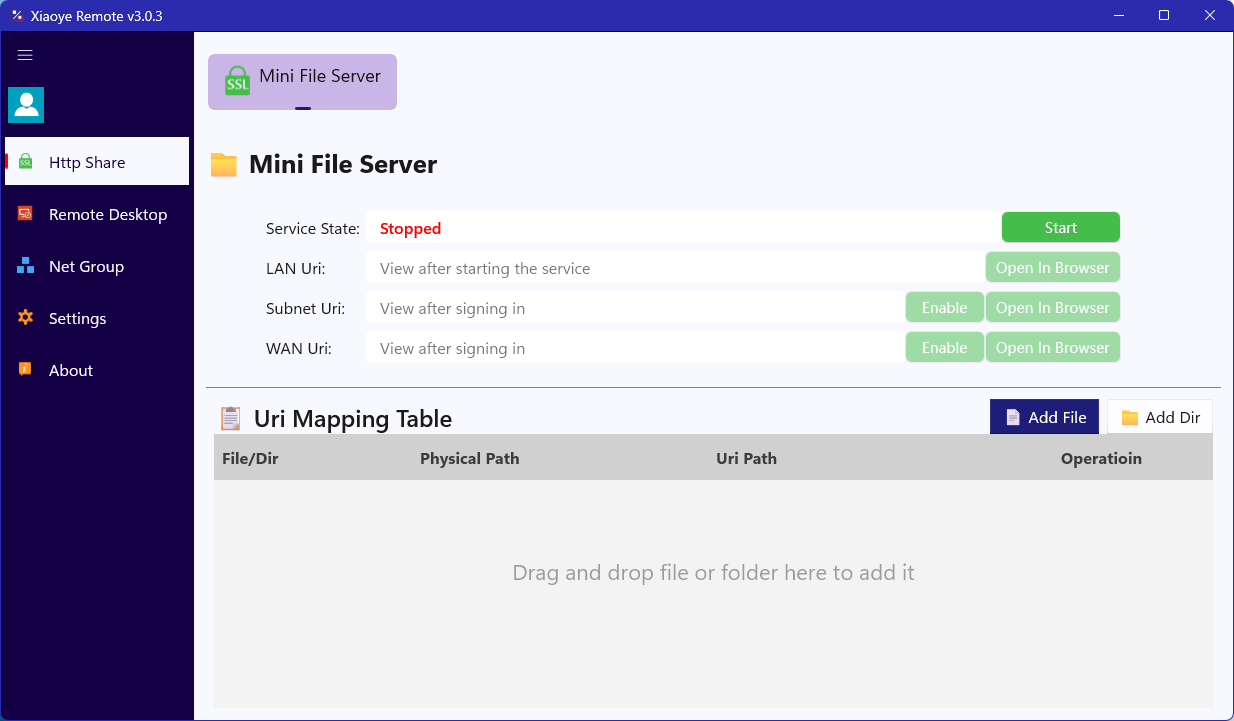
Launch the Xiaoye Remote App and navigate to the HTTP Sharing feature homepage. By default, the service is in a stopped state, and the interface is clear and concise.
2. Start the Service
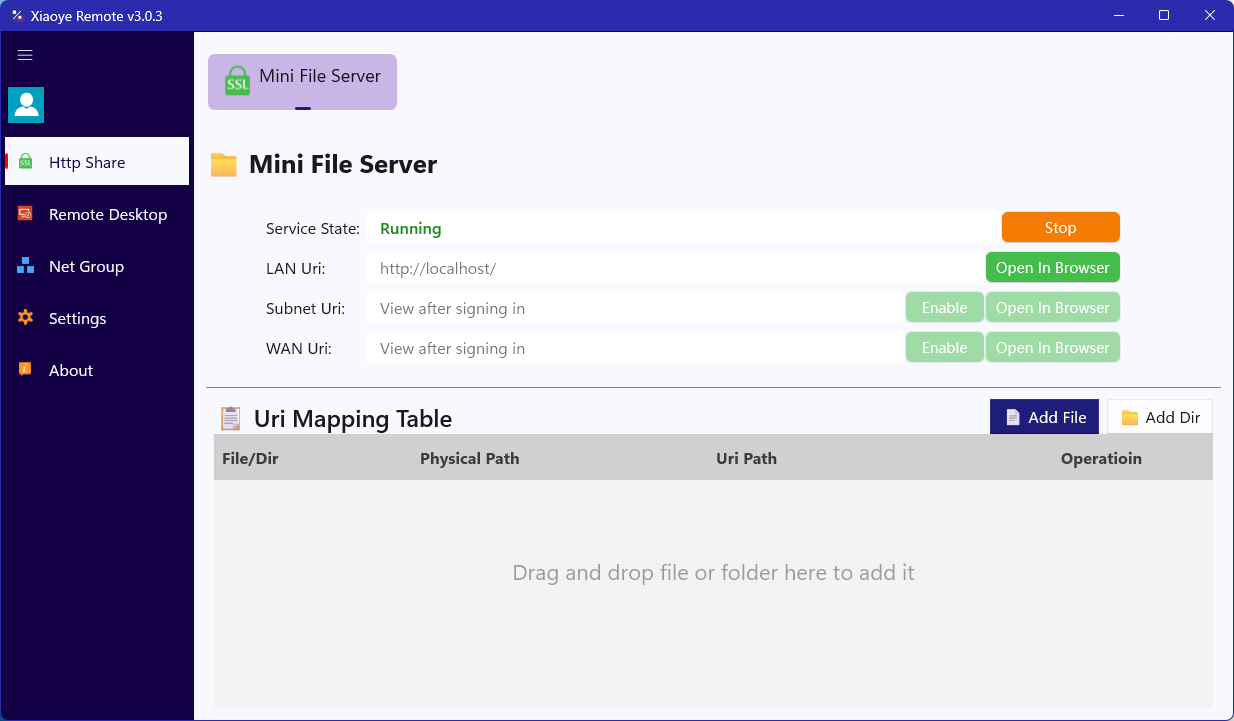
Click the "Start" button at the top. Once the service starts successfully, you will see an indicator showing that the service is running, indicating it is ready to receive file mappings.
3. Add Files to Share
You can add files or directories to share in two ways:
-
Direct Drag & Drop: Drag files or folders directly into the URI mapping table area
-
Manual Addition: Click the "Add File" or "Add Directory" button and select files in the file manager window
You can flexibly add multiple files or entire folders as needed to build your sharing list.
4. View in Browser
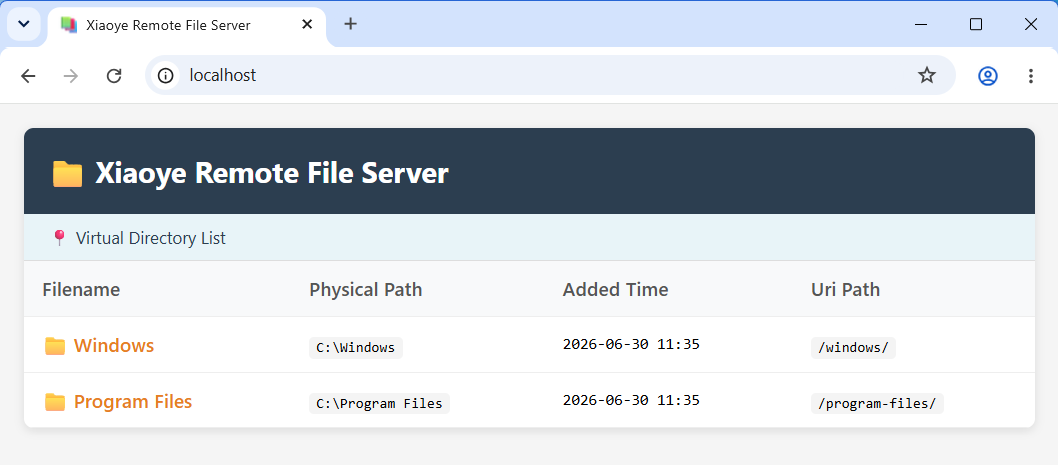
After adding files, click the "Open in Browser" operation, and you will see a basic file sharing list page.
Local Network Access: If another device is on the same local network as your device, simply enter http://<your_local_IP> in the browser to access and download files.
5. Share in Subnet or Public Network
You may also want to access shared files through other network environments. Xiaoye Remote provides you with a more flexible solution:
-
Log in to your account: Click the avatar in the upper left corner to log in to your Xiaoye Pass account
-
Enable Subnet/Public Network: After logging in, return to the HTTP Sharing page and click the "Subnet/Public Network" enable button
-
Get access links: Once enabled, you will see two types of links:
-
Subnet URI: Accessible between two devices logged in with the same Xiaoye Pass account, or between devices that have joined the same network group – ideal for team collaboration or multi-device synchronization
-
Public Network URI: You can access this link from any other device or mobile phone (if access fails, wait a few seconds and refresh to try again)
-
Friendly Reminder
For your data security, please disable the relevant features promptly when sharing is no longer needed. Xiaoye Remote always prioritizes your privacy and security.
Version Message
The HTTP Sharing feature in Xiaoye Remote 3.0.5 is designed to provide you with a simple, flexible, and secure way to share files. Whether you're sharing photos with family on your home local network, collaborating with colleagues by transferring documents in an office environment, or achieving more flexible access through subnet/public network features, HTTP Sharing makes the entire process easier and more efficient.
Xiaoye Remote 3.0.5 is now available for download. Welcome to visit our official website or app store to update to the latest version and experience the new HTTP Sharing feature!