Two Directly Connected PCs Can Communicate Across Subnets!
Hey network engineers, sysadmins, and anyone driven crazy by VLANs – hold up!
Today we're talking about a trick that goes against common sense. You've probably always thought: if you connect two PCs directly with a cable, they have to be on the same subnet to talk to each other (like 192.168.1.x and 192.168.1.y).
Yeah, that's the "politically correct" way. But sometimes life throws you curveballs:
-
Maybe one PC has a static IP (10.10.10.5) and the other is DHCP (192.168.1.3), and you just don't want to keep changing them back and forth.
-
Maybe you're just testing Layer 3 forwarding and don't want to set up a complicated router.
-
Or maybe you just want to prove the old-timers wrong who insist "they must be on the same subnet!"
Today, I'm going to show you how to break that rule. Two directly connected PCs with IPs on different subnets? Still pingable! And you don't need an extra router – just the built-in "soft router" feature in Windows.
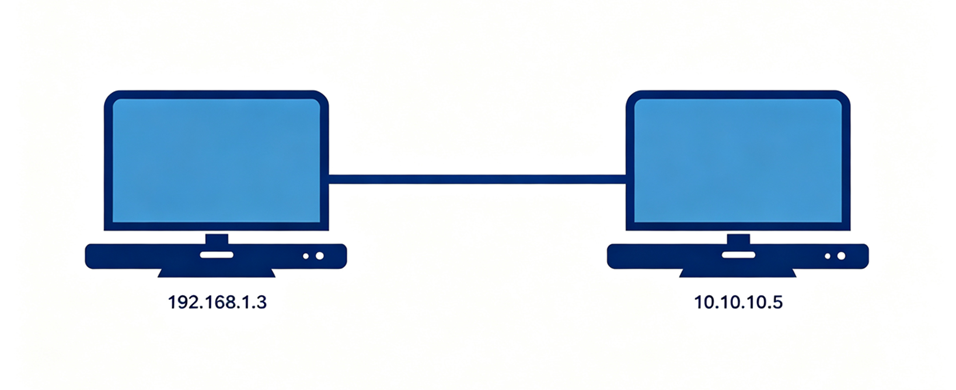
Step 1: The Hardware (If you mess this up, just quit networking)
A crossover cable? Wrong! That was the rule back in the ancient times (circa 2000).
Just grab a regular straight-through cable, plug one end into PC-A's NIC, and the other into PC-B's NIC. Once plugged in, you'll see the little LEDs on the ports start "bling bling" – that means the physical link is ready.
Step 2: Set Up Their "ID Cards" (IP Addresses)
Let's put them in two different "camps":
-
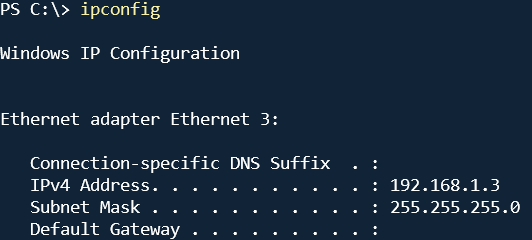
PC-A: IP
192.168.1.3, Subnet Mask255.255.255.0
-
PC-B: IP
10.10.10.5, Subnet Mask255.255.255.0
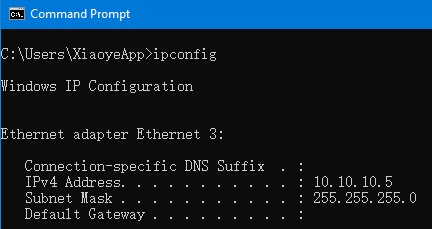
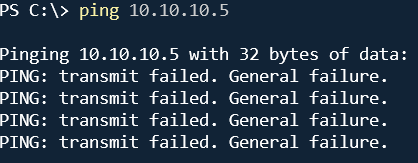
Notice that? One is on the 192.168.1.x network, the other on 10.10.10.x. If you do things the normal way and ping 10.10.10.5 from PC-A, the system will tell you: "Destination Host Unreachable" – because the OS thinks these two don't know each other.
Step 3: Grant "God Mode" to Your PCs (Add Static Routes)
Since A and B don't know each other, we'll forcefully draw a map in their brains – telling them: when you're looking for the other guy, just go directly through your own NIC, don't bother asking the gateway!
On PC-A (192.168.1.3):
Open Command Prompt (CMD) and type this "spell":

Translation: "Hey PC-A, anytime you're looking for someone on 10.10.10.x, don't ask anyone else – you're the guide! Just send it straight out of your own NIC!"
On PC-B (10.10.10.5):
Open CMD and type the "reply":

Translation: "Hey PC-B, when you're looking for someone on 192.168.1.x, don't be shy – just fire it straight out of your NIC! "
Step 4: Witness the Miracle (And Make It Permanent)
Now, ping B from A:
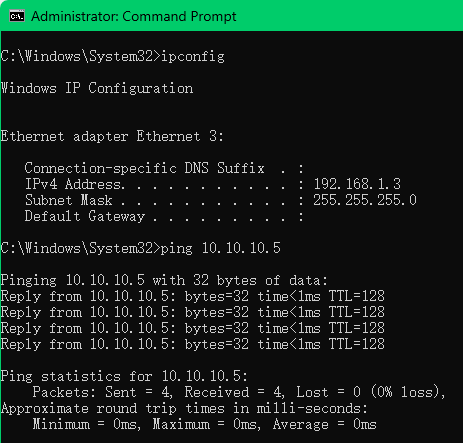
ping 10.10.10.5
Boom! You'll see Reply from 10.10.10.5: bytes=32 time<1ms TTL=128.
It works! Perfectly! Now you can share folders, transfer large files, or even play LAN games – no issues at all.
⚠️ Pro Tips (Survival Guide)
-
Reboot = Gone: The
route addcommands above are temporary. They'll vanish after a restart. To make them permanent, useroute -p add(Windows) instead. -
Turn off the firewall! Turn off the firewall! Turn off the firewall! I can't stress this enough. Windows Firewall, by default, allows ICMP (ping) from the same subnet but blocks it from different subnets. If you don't disable it, all your hard work will just give you "Request Timed Out." Just turn off Domain and Private firewalls for testing.
-
Subnet Mask Matters: Use
255.255.255.0if you want the entire subnet to route through. Use255.255.255.255if you only want that specific host to communicate (host route) – precision targeting!
Final Thoughts
See? Feels like a whole new world has opened up, doesn't it?
This trick is super handy for server migration temporary setups, team networks without a switch, or just showing off your skills.
Remember: Technology is rigid, but people are flexible. Who says directly connected PCs have to be on the same subnet? As long as the routes are correct, you can ping across any distance!
Alright, I'm off to go mess with the product manager's head with this. Go try it out and report back!
If it doesn't work, double-check the IPs in Step 3, or see if Windows Update secretly turned the firewall back on. Peace out! 👋